

Organization Management
An Organization is a unit that groups teams and projects together. This page explains Organization settings and member management.
Organization Dashboard
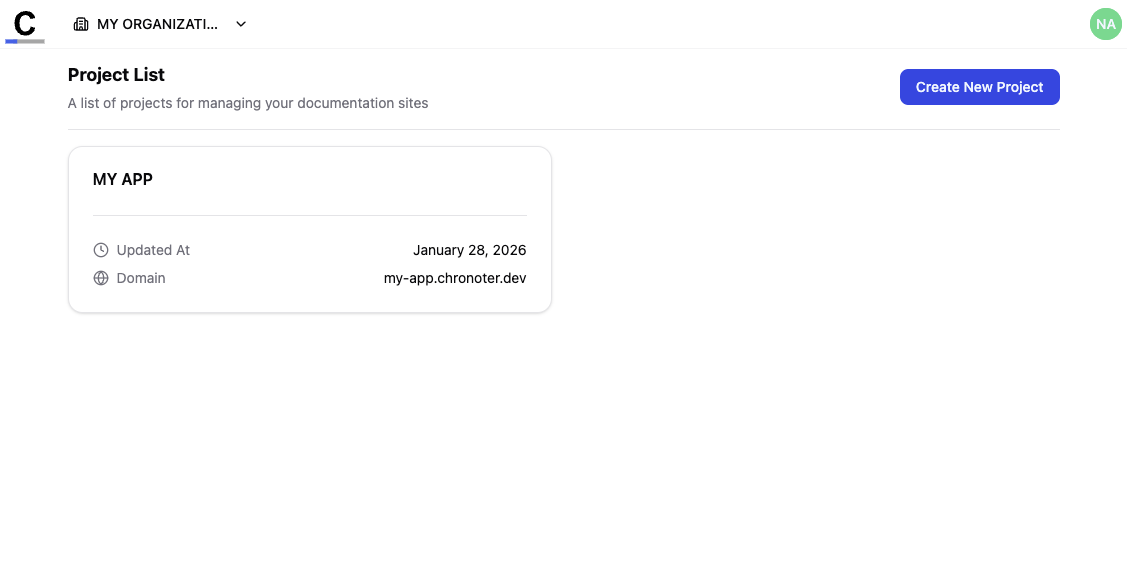
The Organization top page displays a list of projects belonging to that Organization.
Member Management
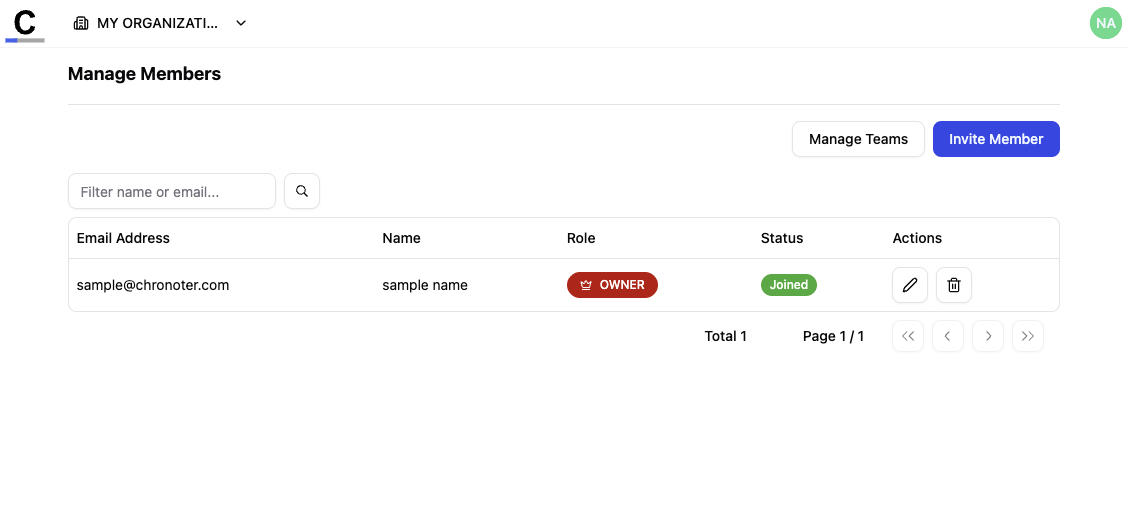
Manage members belonging to the Organization.
Access the member management screen from "Members" in the sidebar.
Invite Members
- Click "Invite Member" on the members list screen
- Enter the information for the member to invite
- Email address (required)
- Name
- Role
- Click "Send Invitation"
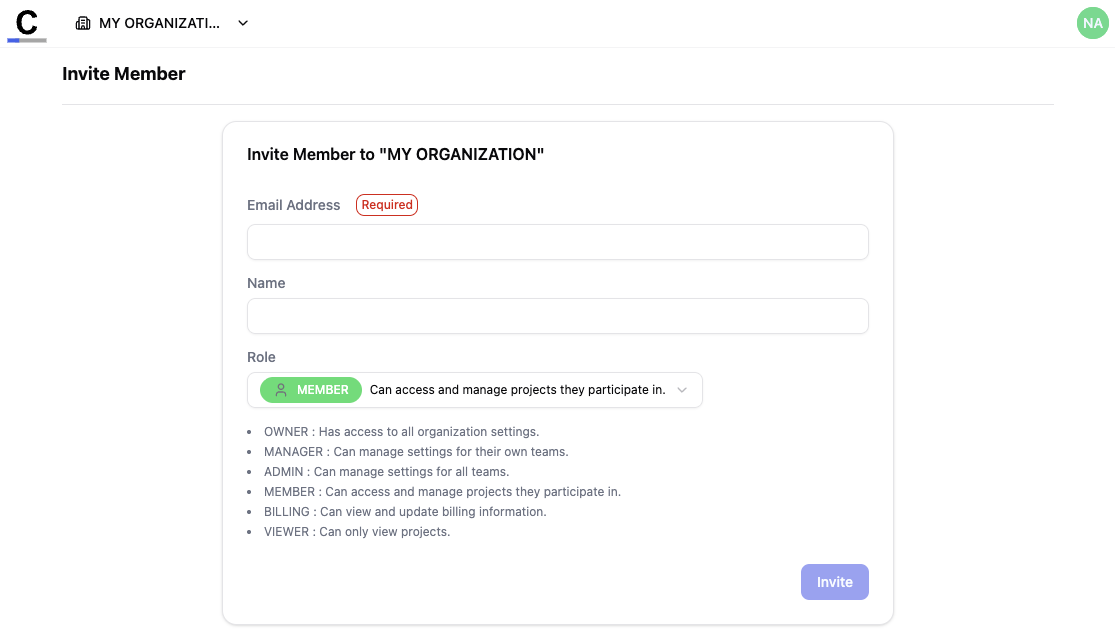
An invitation email will be sent to the invited user.
Member Roles
The following roles can be assigned to Organization members.
| Role | Description |
|---|---|
| Owner | Has full administrative rights over the Organization |
| Manager | Can manage members and projects |
| Admin | Can manage projects |
| Member | Can participate in projects |
| Billing | Can manage billing information |
| Viewer | View only access |
Team Management
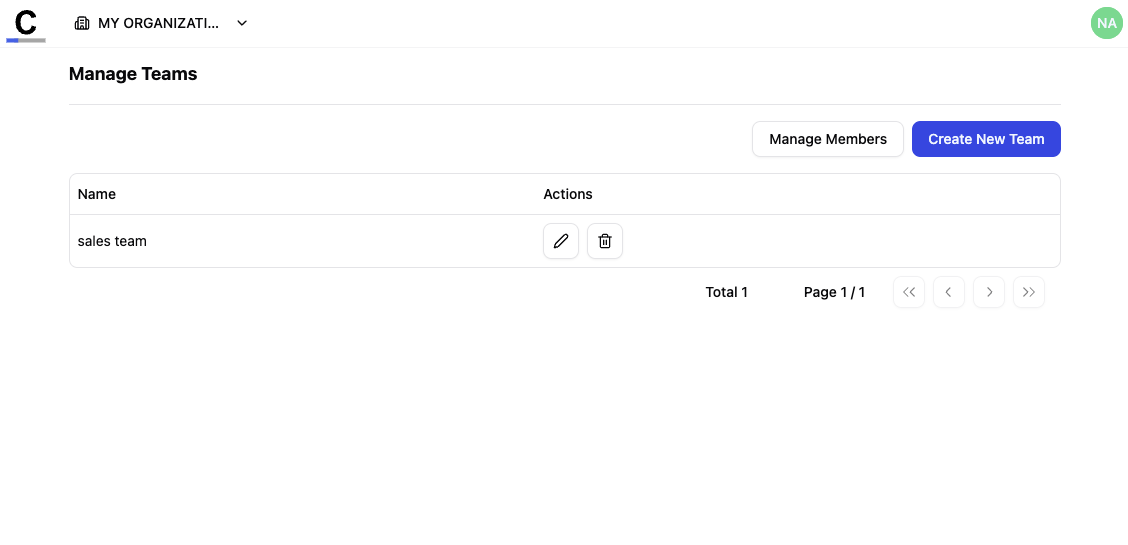
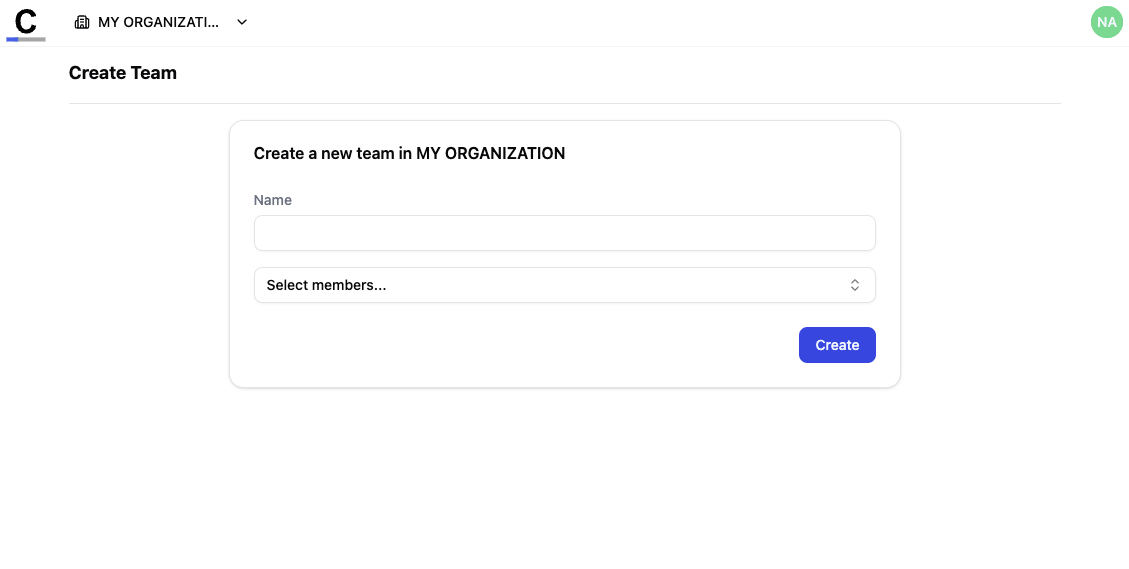
Members can be grouped into teams. Using teams allows you to efficiently manage access permissions to projects.
Access the team management screen from "Team List" on the members list screen.
Create a Team
- Click "New Team" on the teams list screen
- Enter the team name
- Select members to add to the team
- Click "Create"
Organization Settings
Access the Organization settings screen from "Settings" in the sidebar.
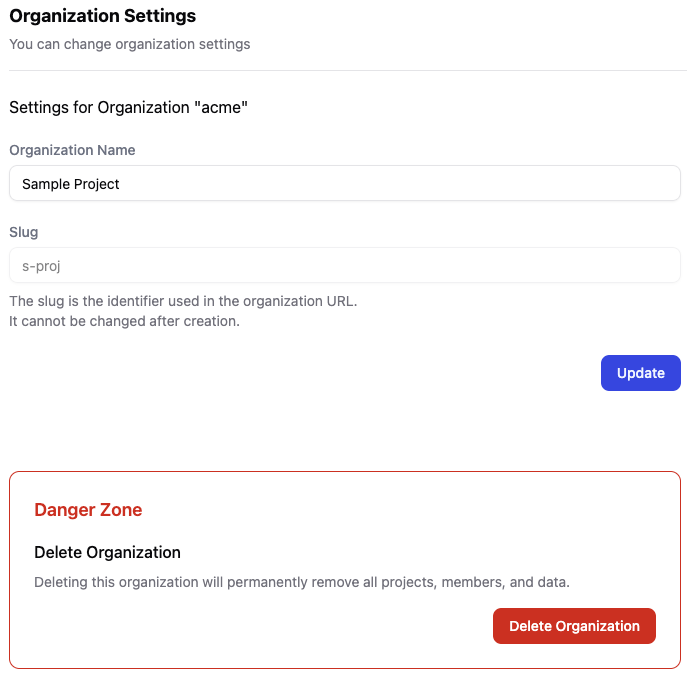
Delete Organization
You can delete the Organization from the "Danger Zone" in the Organization settings screen.
Deleting an Organization will also delete all projects, members, and teams belonging to that Organization. This action cannot be undone.