

Project Management
A Project corresponds to one documentation site. This page explains Project settings and member management.
Project Dashboard
The Project top page displays site information and build history.
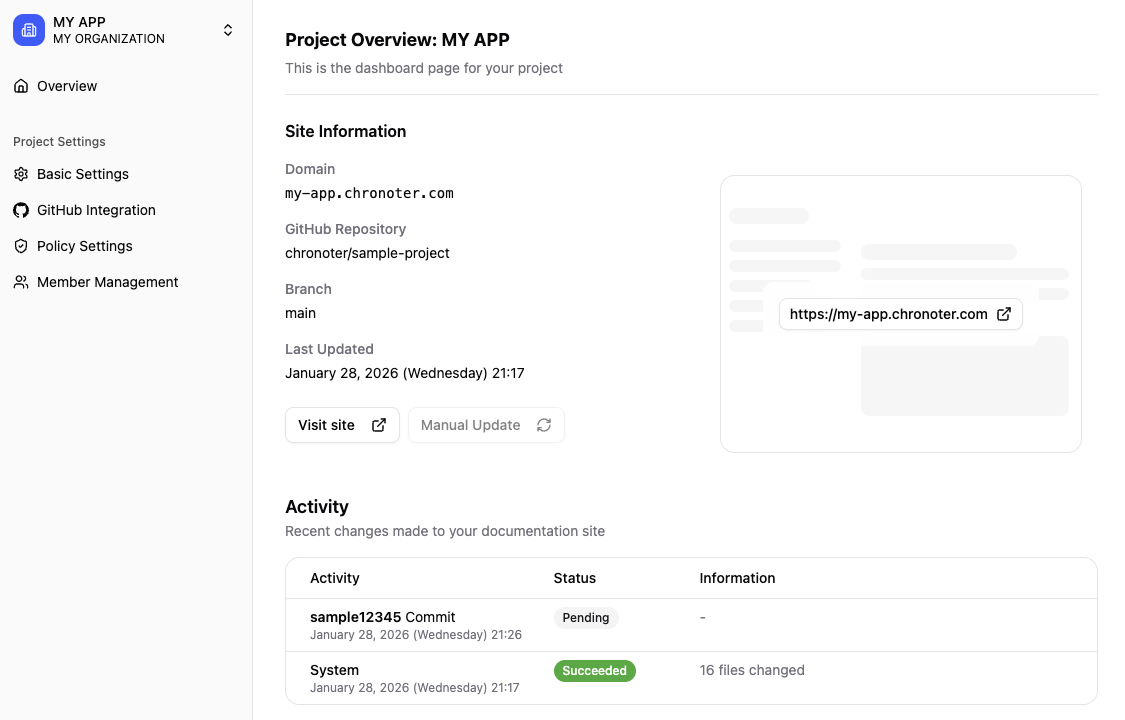
Site Information
| Field | Description |
|---|---|
| Domain | Documentation site URL ({slug}.chronoter.com) |
| Repository | Connected GitHub repository |
| Branch | Target branch for deployment |
| Last Updated | Last build date and time |
Action Buttons
- Visit Site: Opens the deployed documentation site in a new tab
- Manual Rebuild: Triggers a rebuild with the latest repository content
Build History
Past build history is displayed in a list. You can check the status of each build (success/failed/running).
Create a Project
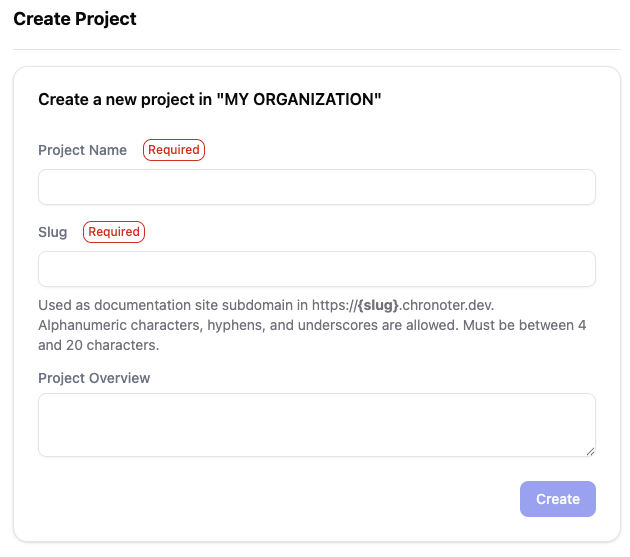
You can create a new Project from the Organization dashboard.
- Click "New Project"
- Enter project information
- Project Name (required)
- Slug (required): Used in the documentation site URL
- Overview
- Click "Create"
Project Member Management
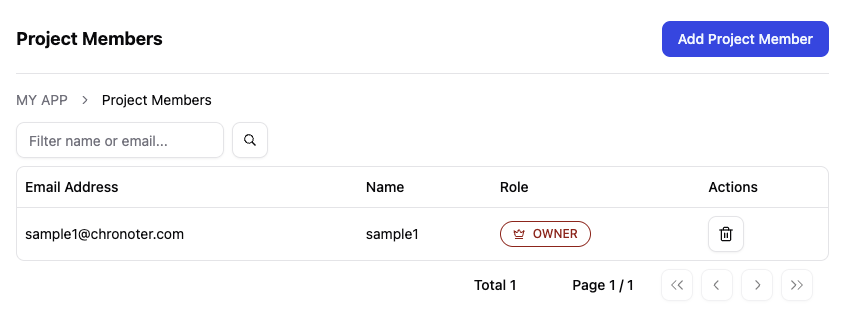
Manage members participating in the Project.
Access the member management screen from "Members" in the sidebar.
Add Members
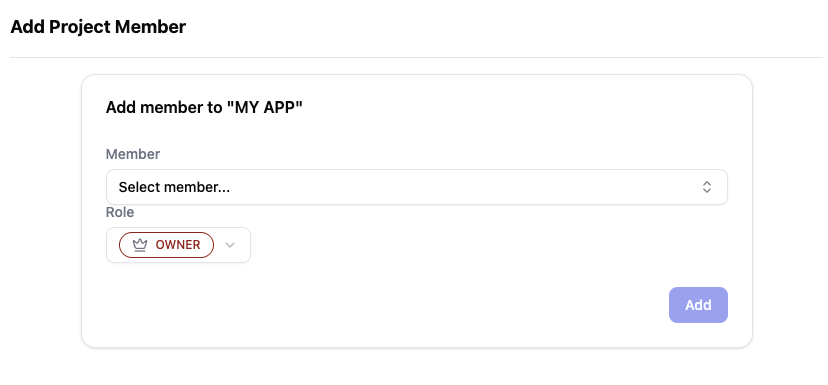
- Click "Add Member" on the members list screen
- Select the member to add
- Set the role
- Click "Add"
Member Roles
The following roles can be assigned to Project members.
| Role | Description |
|---|---|
| Owner | Has full administrative rights over the Project |
| Member | Can edit documents |
| Read | View only access |
Project Settings
Access the Project settings screen from "Settings" in the sidebar.
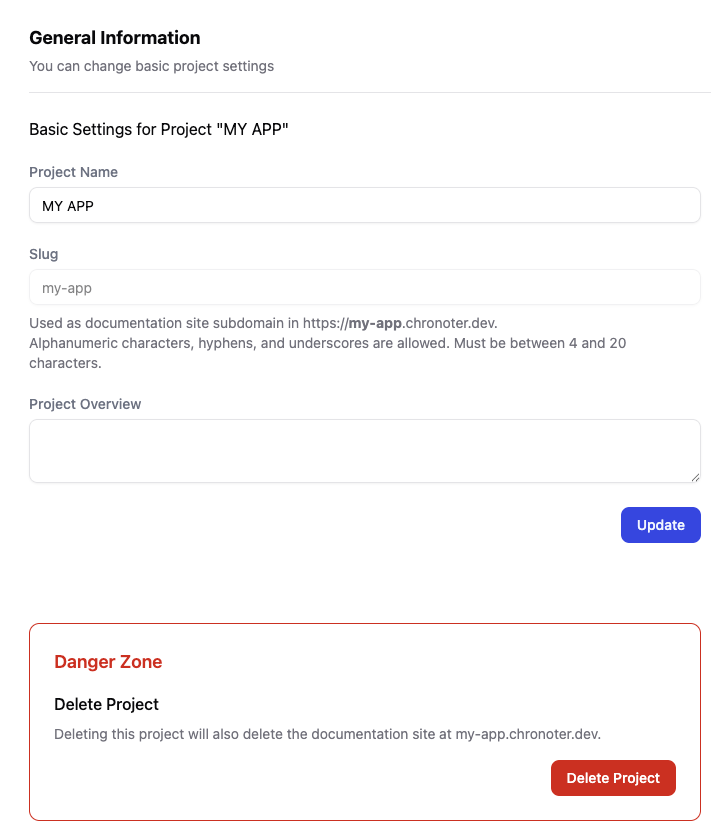
Editable Fields
| Field | Description |
|---|---|
| Project Name | Display name of the project |
| Overview | Project description |
※ Slug cannot be changed after creation.
Delete Project
You can delete the Project from the "Danger Zone" in the Project settings screen.
Deleting a Project will also delete the deployed documentation site. This action cannot be undone.