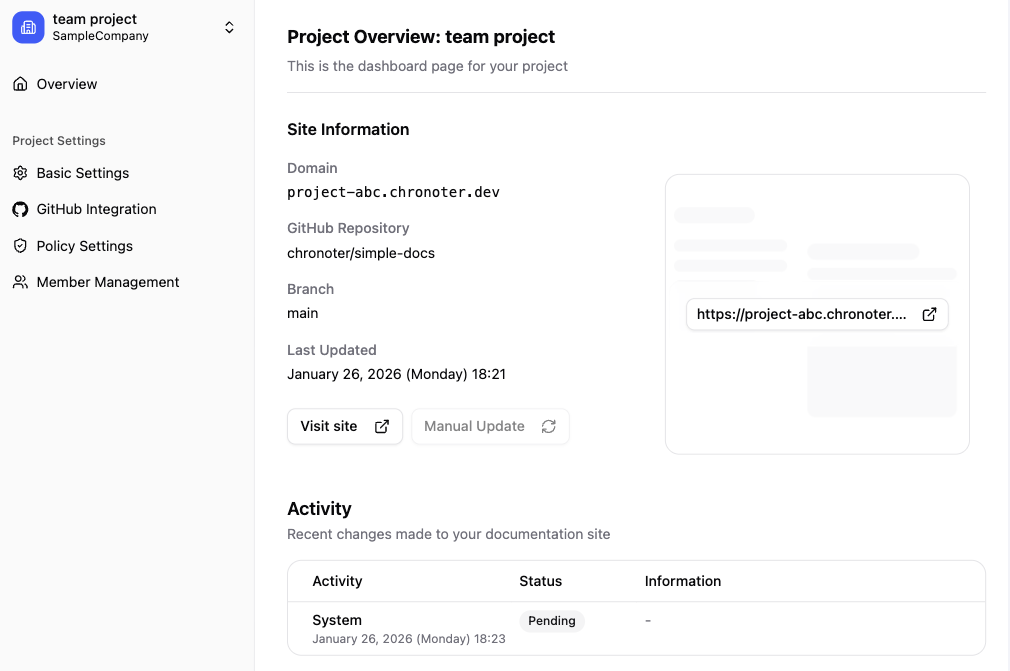

Create Account
To use Chronoter Platform, you need to create an account and complete the initial setup.
Prerequisites
- Invite Code: An invite code is required to create an account
Setup Flow
The onboarding consists of three steps:
- Create Account - Enter invite code and register
- Workspace Setup - Create Organization and Project
- GitHub Integration - Connect repository
Step 1: Create Account
1-1. Access the Onboarding Page
Go to https://app.chronoter.com/onboarding.
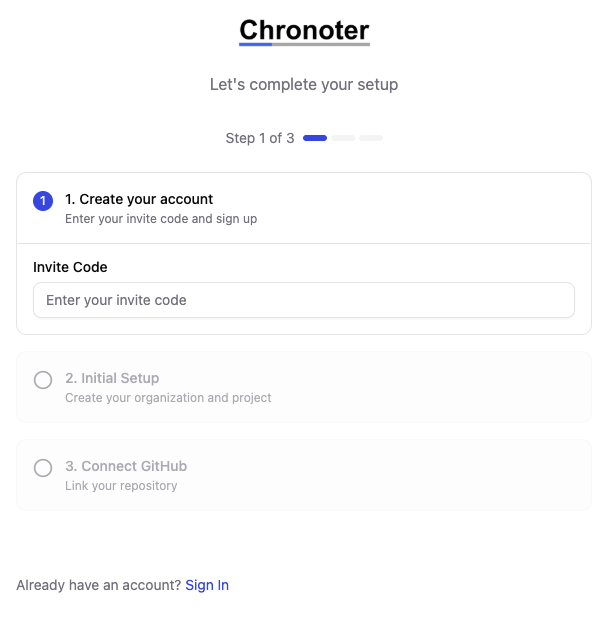
1-2. Enter Invite Code
Enter your invite code. Once a valid code is entered, the authentication method selection will appear.
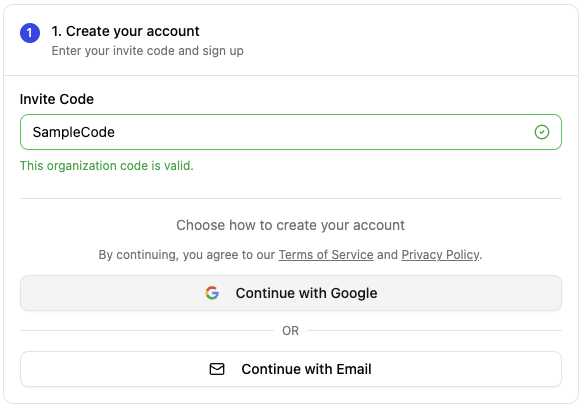
1-3. Choose Authentication Method
You can create an account using one of the following methods.
Sign up with Google
Click "Continue with Google" to be redirected to Google's authentication page. After authentication, you will automatically proceed to Step 2.
Sign up with Email
- Select "Sign up with email"
- Enter your email address and password
- Click "Create Account"
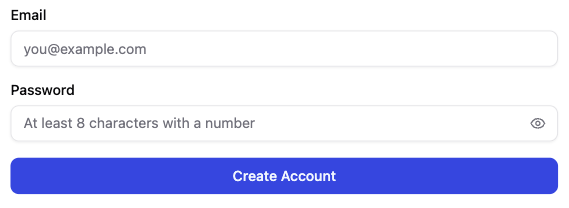
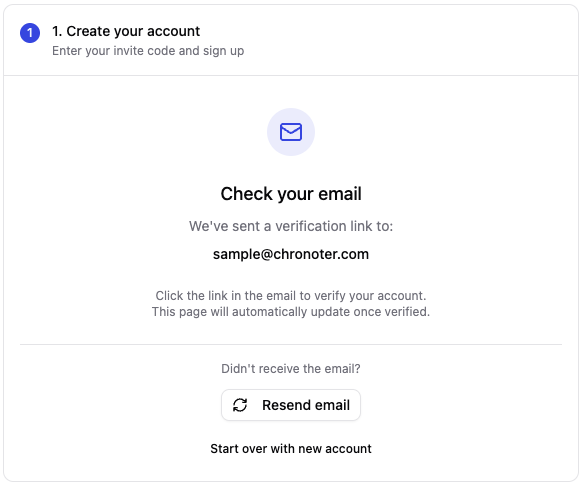
1-4. Email Verification (for email registration)
If you registered with an email address, a verification email will be sent to the address you provided. Click the link in the email to complete verification.
Step 2: Workspace Setup
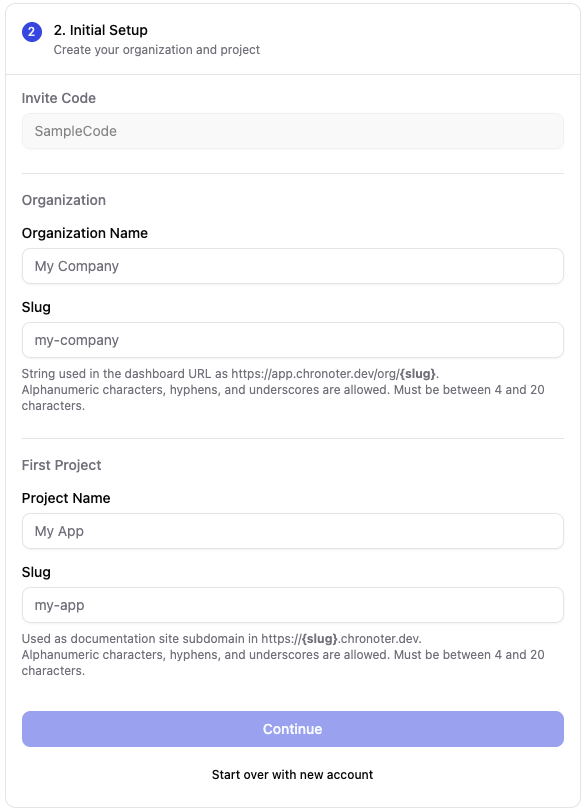
After account creation, you will proceed to the Organization and Project setup screen.
2-1. Create Organization
An Organization is a unit that groups teams and projects together.
| Field | Description |
|---|---|
| Organization Name | Display name of the organization |
| Organization Slug | Identifier used in URL (app.chronoter.com/org/{slug}) |
2-2. Create Project
A Project corresponds to one documentation site.
| Field | Description |
|---|---|
| Project Name | Display name of the project |
| Project Slug | Used in documentation site URL ({slug}.chronoter.com) |
After completing the input, click "Create" to proceed to the next step.
Step 3: GitHub Integration
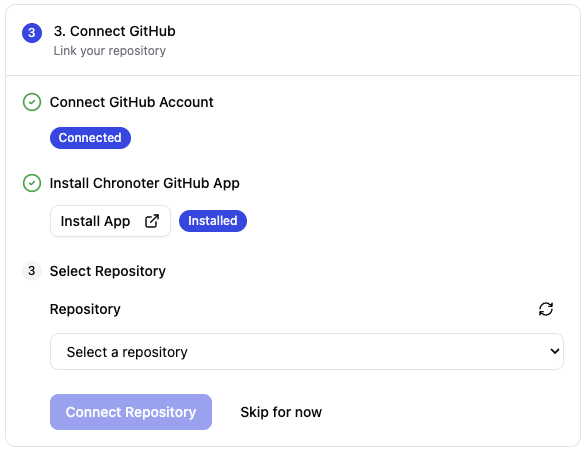
By connecting a GitHub repository, you can enable automatic deployments triggered by pushes to the repository.
3-1. Connect GitHub Account
Click "Connect with GitHub" to link your GitHub account.
3-2. Install Chronoter GitHub App
Install the Chronoter GitHub App to access the repositories you want to connect.
Click "Install App" to be redirected to GitHub's App settings page.
3-3. Select Repository and Branch
- Select the repository to connect
- Select the target branch for deployment
- Click "Connect Repository"
Setup Complete
Once all steps are completed, you will be redirected to the project dashboard.